English Русский Українська Deutsch Français
Connect Odoo to erp2pdf.com: install the connector step by step
Install the free Dynamic PDF Report Builder connector in Odoo, click Connect, allow the connection on erp2pdf.com, and print invoices, quotations and purchase orders from a design you picked in Studio. No keys to copy, no QWeb.
Before you start
- Odoo 18, 19 or 20, on premise or on Odoo.sh, and an Odoo administrator account.
- Sales and Invoicing. The module installs them, with Discuss, as dependencies.
- An erp2pdf.com account. You don't need Pro to try it: the free Starter plan is enough. Studio, the connector, the API, translations and fields in the customer's language are on every plan. Each rendered PDF uses credits from your plan, roughly one per page; Starter has 20 a month and its PDFs carry a small “Made with erp2pdf.com” line. Pro prints without the line and adds email templates sent from Odoo, your own fonts and print-ready PDF. See pricing. You can also create the account during step 4.
- A public https address for your Odoo, such as
https://erp.your-company.com. One-click Connect asks your Odoo at that address to prove it started the connection. An Odoo that cannot be reached from the internet connects with a token instead (connect manually).
One Odoo per workspace. Your erp2pdf.com workspace is locked to the address of the first Odoo that connects to it, and calls from any other address are refused. Check the address in step 2 before you connect. If you move Odoo later, write to [email protected] to unlock it.
Step 1. Install the module in Odoo
The connector is free and listed in the Odoo Apps Store as Dynamic PDF Report Builder - Drag & Drop Studio; the current version is 1.9. Download it from the Apps Store: for Odoo 18, for Odoo 19 or for Odoo 20.
Unzip it and copy the pdf_builder_connector folder into a directory on
your Odoo addons path (on Odoo.sh, add it to your repository), then in
Odoo:
- Turn on developer mode (Settings → Activate the developer mode).
- Open Apps and click Update Apps List.
- Remove the Apps filter from the search bar, search for Dynamic PDF, and click Activate on Dynamic PDF Report Builder - Drag & Drop Studio.
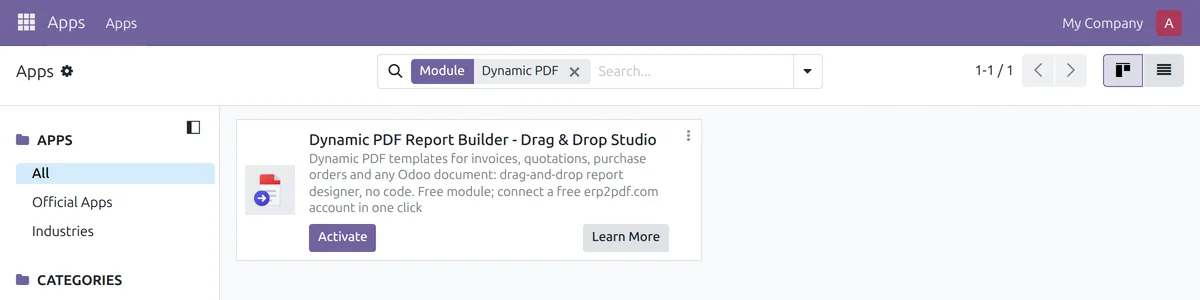
Upgrading from an older version? Replace the folder with the new one, click Update Apps List, then Upgrade on the module. Your connection, default templates and settings are kept.
Step 2. Check your Odoo's public address
Open Settings → Technical → System Parameters (developer
mode) and check web.base.url. It must be the https address
your users and erp2pdf.com reach Odoo at, for example
https://erp.your-company.com — not
http://localhost:8069 or an internal IP.
Connect shows this address on erp2pdf.com for you to check, and your workspace is locked to it.
Step 3. Click Connect to erp2pdf.com
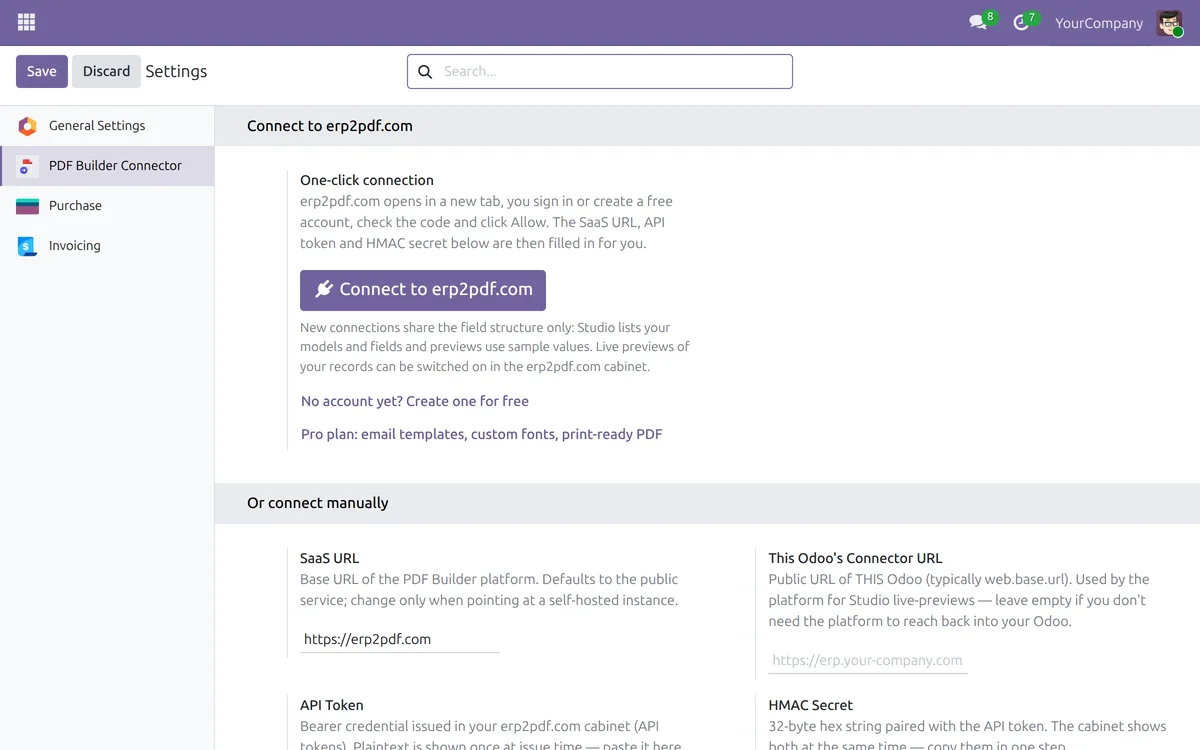
Open Settings → PDF Builder Connector and click Connect to erp2pdf.com.
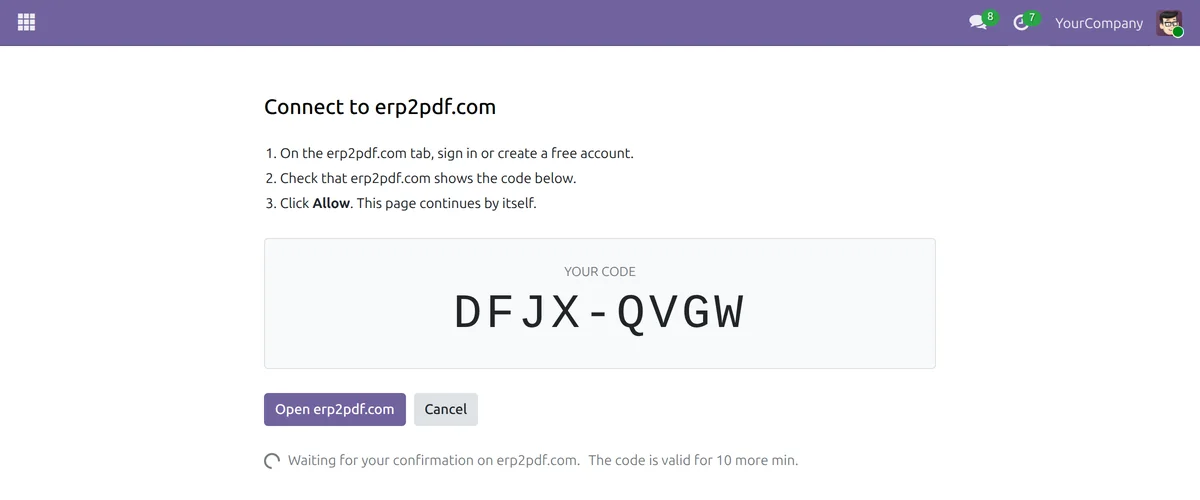
Odoo shows a code and opens erp2pdf.com in a new tab. Keep the Odoo tab open: it continues by itself once you allow the connection. The code is valid for 30 minutes.
Step 4. Check the code and allow the connection
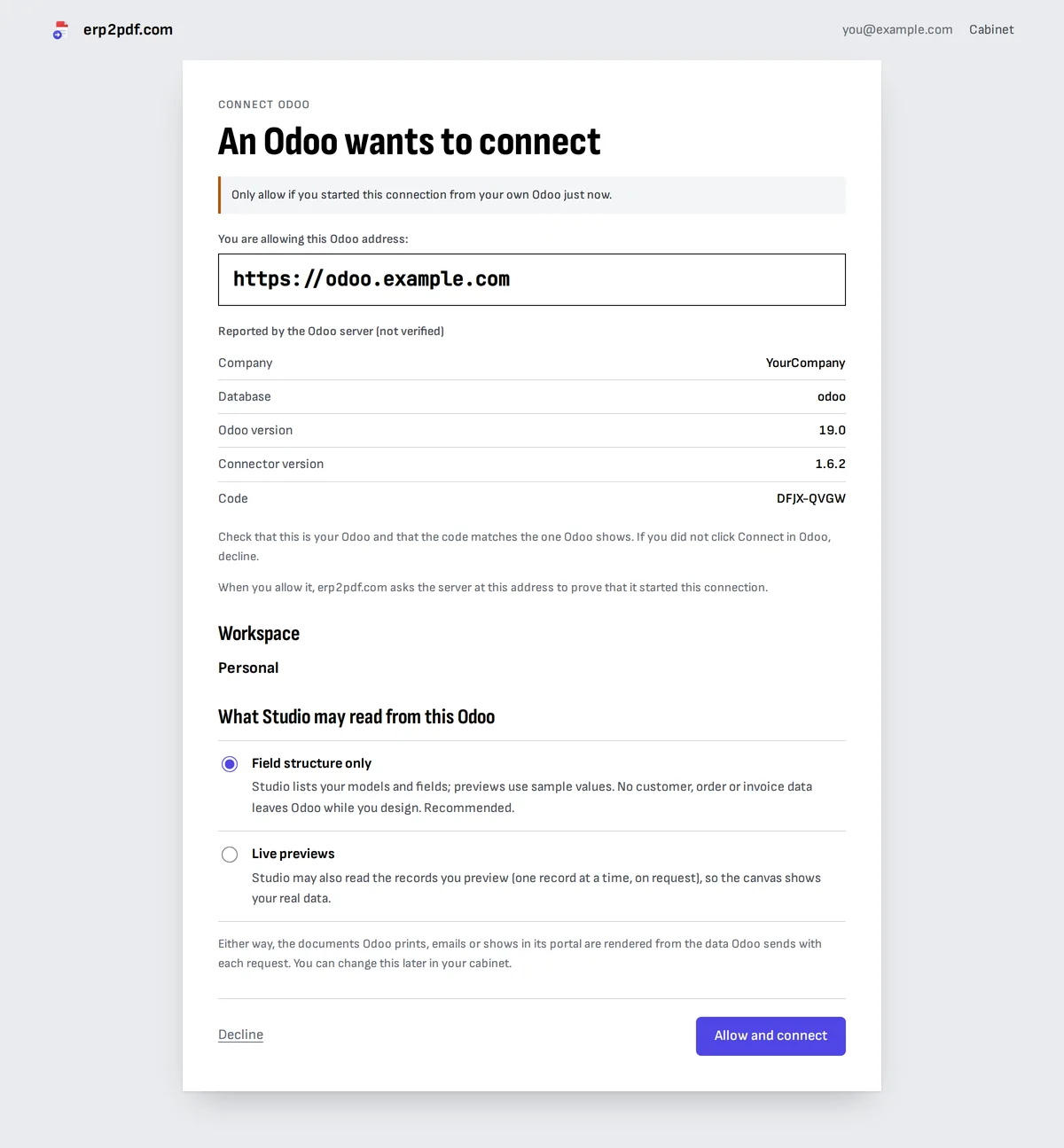
On erp2pdf.com, sign in, or create a free account: you come back to this page afterwards. Then check two things:
- the Odoo address is your Odoo's public address from step 2;
- the code is the one your Odoo tab shows.
Choose what Studio may read from this Odoo. Field structure only lets Studio list your models and fields and preview your templates with sample values; no customer, order or invoice data leaves Odoo while you design. Live previews also lets Studio read the record you preview, one at a time, so the canvas shows your real data. You can change this later in your cabinet. Either way, the documents Odoo prints are rendered from the data Odoo sends with each request.
Click Allow and connect. If you did not click Connect in your Odoo just now, click Decline.
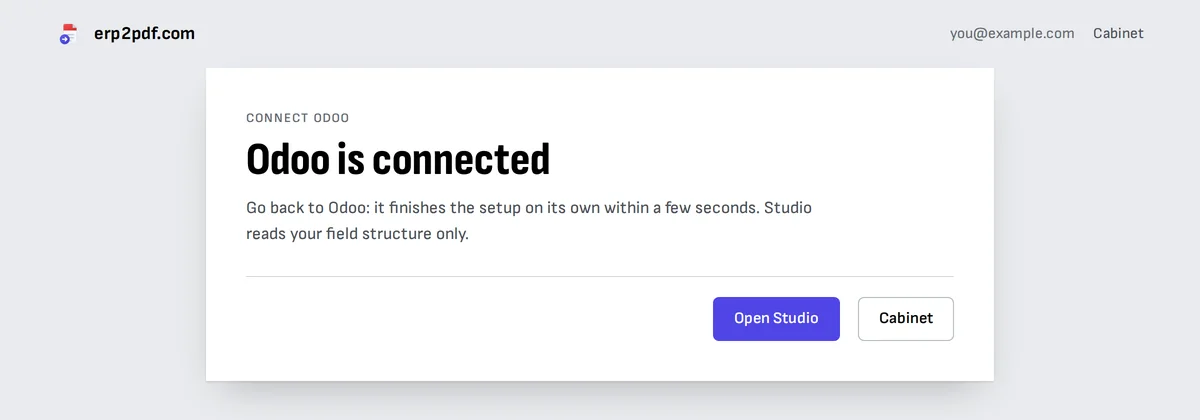
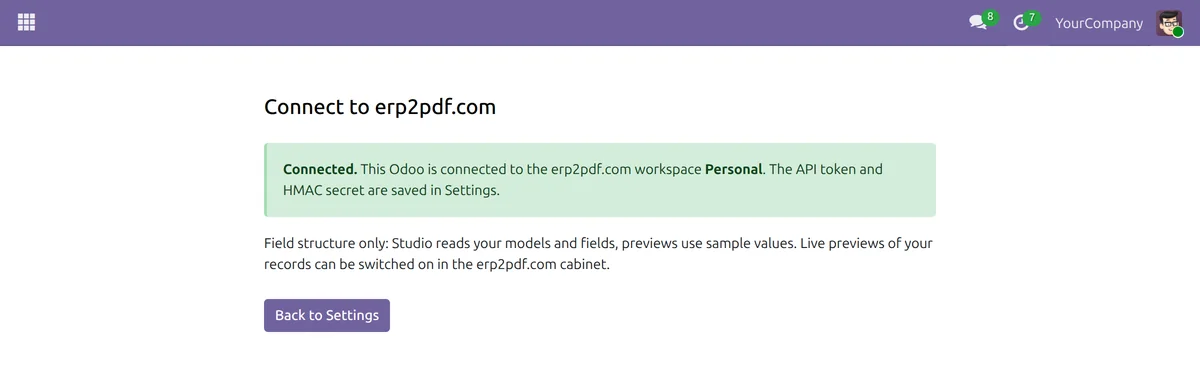
Back in Odoo the page says Connected: Odoo has saved the SaaS URL, the API token and the HMAC secret by itself and loaded your templates. The token and secret go from erp2pdf.com straight to your Odoo server, never through the browser.
Step 5. Pick a design in Studio
Open Studio on erp2pdf.com and click New. Pick the document type (invoice, quotation, purchase order, product sheet, or a blank page for any other Odoo model), then a style: classic, folder tab, wave, diagonal, sidebar, big total, light, boxed, striped, bubble or elegant. Every card is a real render of a sample document. The colour palettes and the font pairings above the cards re-skin all of them; the large preview shows the one you picked.
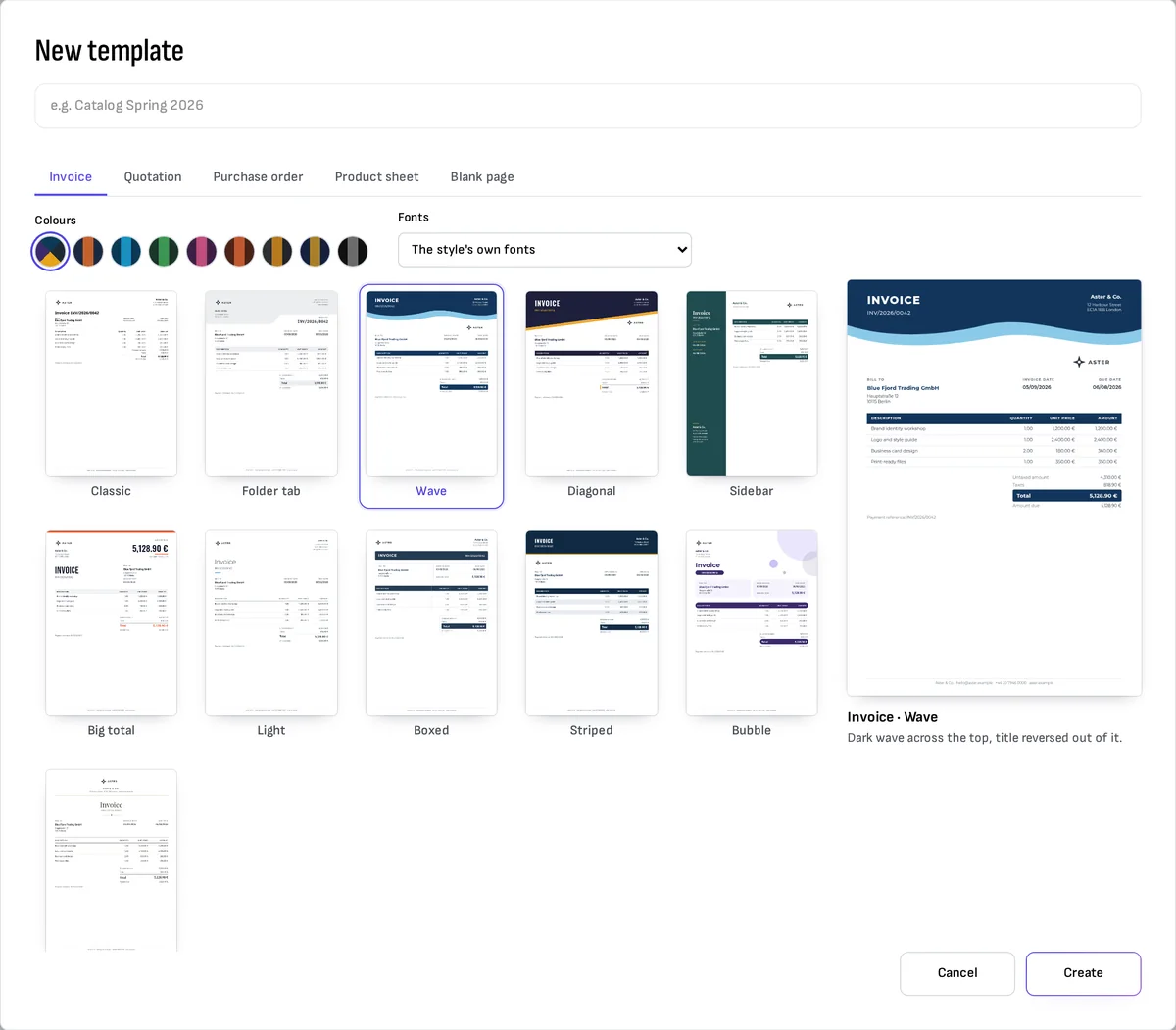
Click Create. The template opens with the fields of the Odoo model in place: partner, dates, the lines table and the totals. The Design section of the page settings changes the palette and the fonts later.
Step 6. Change the content without code
Click a text on the page to edit it in the panel on the right. Text is plain text and every Odoo field is a chip:
- Click a chip to choose how it prints. The popover lists the formats that fit the field, each with what it prints for the current record: money with the record's currency, a number, a percentage, a date format, or the amount in words in the document's language. Add a text before or after it and what to print when the field is empty.
- Insert adds a field, today's date, the page number or a function such as the amount as money or in words.
- Show only if… prints a text only when a rule holds, for example a discount column only when a line has a discount.
- ? (What can I print?) lists every function with an example.
- To add a field, drag it from the Fields tab onto the page; tables of order or invoice lines work the same way.
- Grid in the palette adds a table you type yourself: terms, specifications, price tiers. Each cell is a text, so it can hold a field too, and a row whose text wraps grows in the PDF, moving what is below the table down.
- Chart draws bars, a line, a pie or a donut from the document's lines (the amount per product, lines with the same product added up) or from fields of the record, such as untaxed amount against taxes.
- Select several blocks and press Ctrl+G to make them a section, such as a totals box. A click then takes the whole section, Ctrl+D puts a copy right below it, and a second click picks one block in it. Save to library in the section's panel keeps it for other templates: Sections on the left inserts a copy.
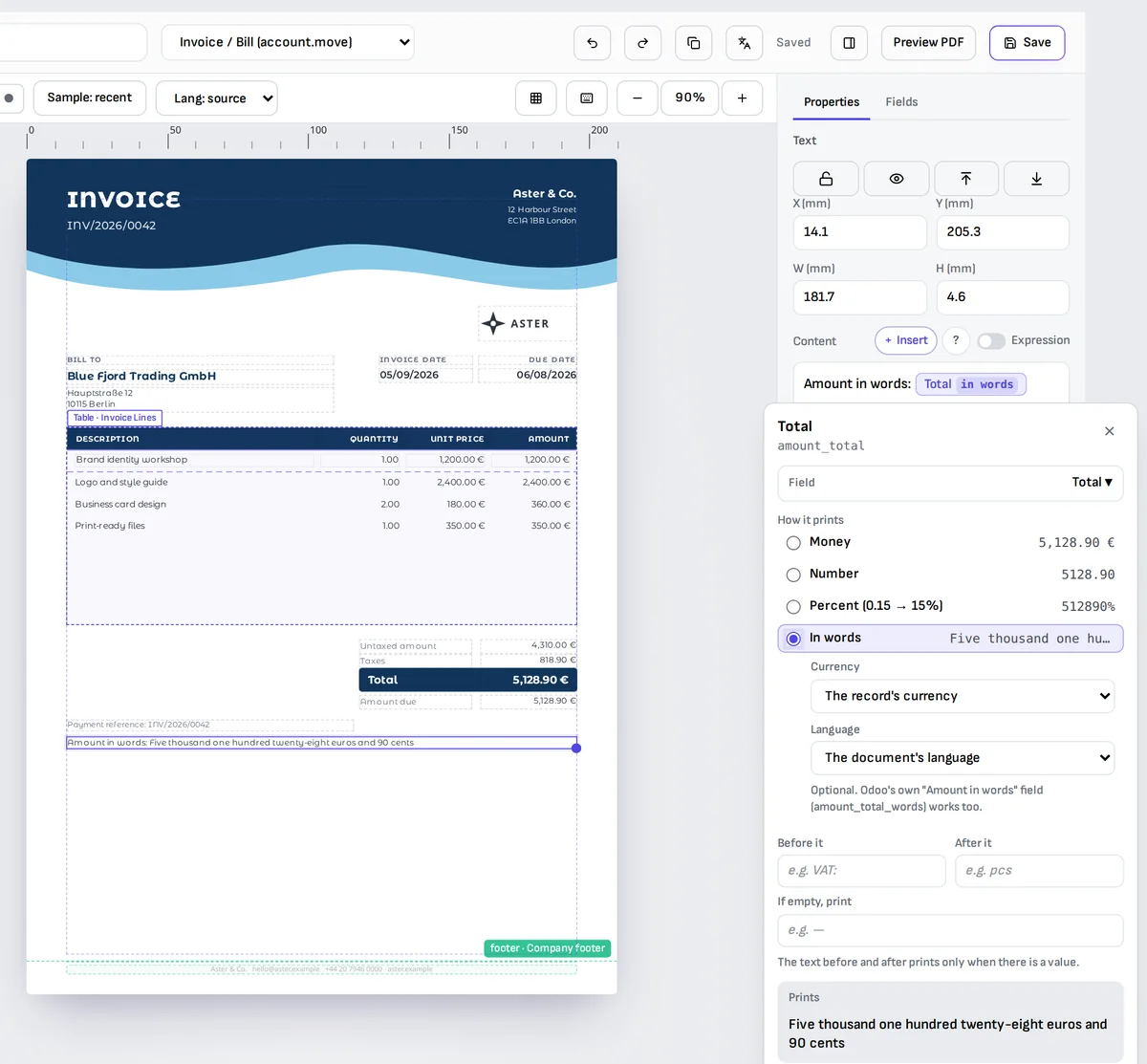
Studio saves as you go. Header and footer parts, translations of every text (a glossary fills the common terms) and Preview PDF are in the same editor.
Step 7. Make the template Odoo's own PDF
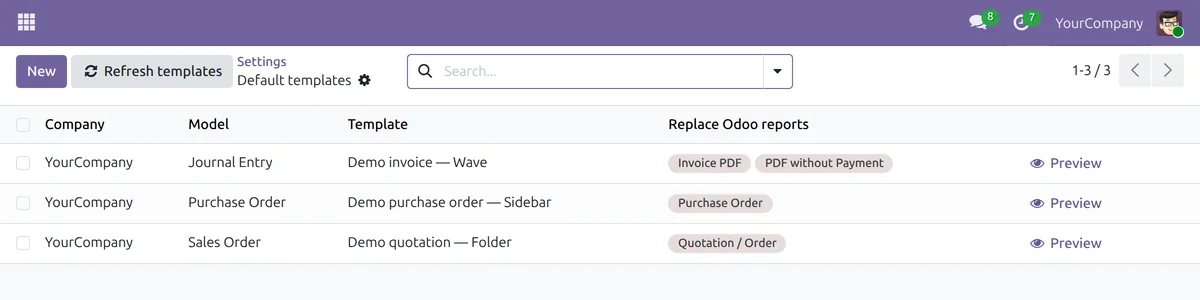
In Odoo open Settings → PDF Builder Connector → Default templates and add a row per model: sales orders, invoices, purchase orders, deliveries or any other model, each with one of your templates bound to it. Refresh templates reloads the list after you add or rename templates in Studio.
Under Replace Odoo reports pick the reports of that model that should come from your template, such as the quotation / order report or the invoice reports. Odoo's Print menu, the PDF attached by Send and by the order confirmation email, the PDF stored on a sent invoice and the customer portal download then all use your design. Preview opens the template on your latest document of that model, with a PREVIEW watermark and no credits used.
- Invoices are titled by what they are: invoice, pro-forma invoice, draft, cancelled invoice or credit note.
- Every document prints in its customer's language when the template has a translation for it, with dates and amounts in that language's format.
- Tick Use Odoo's translations in Odoo under Settings → Dynamic PDF Report Builder → Translations, and product names, descriptions and every other translatable field print in the customer's language from the translations your Odoo already has, Odoo's standard ones or yours, even when the template has no labels in that language. A value without a translation prints as it is (connector 1.9.0 and later).
- Each version of a document is rendered once and kept in Odoo; printing or sending it again uses the kept PDF and no further credits. A change to the document, its lines or the template makes a new one.
- If erp2pdf.com can't be reached, Odoo prints its own report, so nobody is left without a PDF.
Step 8. Generate a PDF from any selection
- Open a quotation, an invoice, a product or a contact in Odoo, or select several in a list; they go into one PDF.
- Click the gear icon (Actions) and choose Generate PDF (PDF Builder).
- Pick a template. Only templates bound to the record's model are listed, the default one preselected.
- Click Generate PDF.
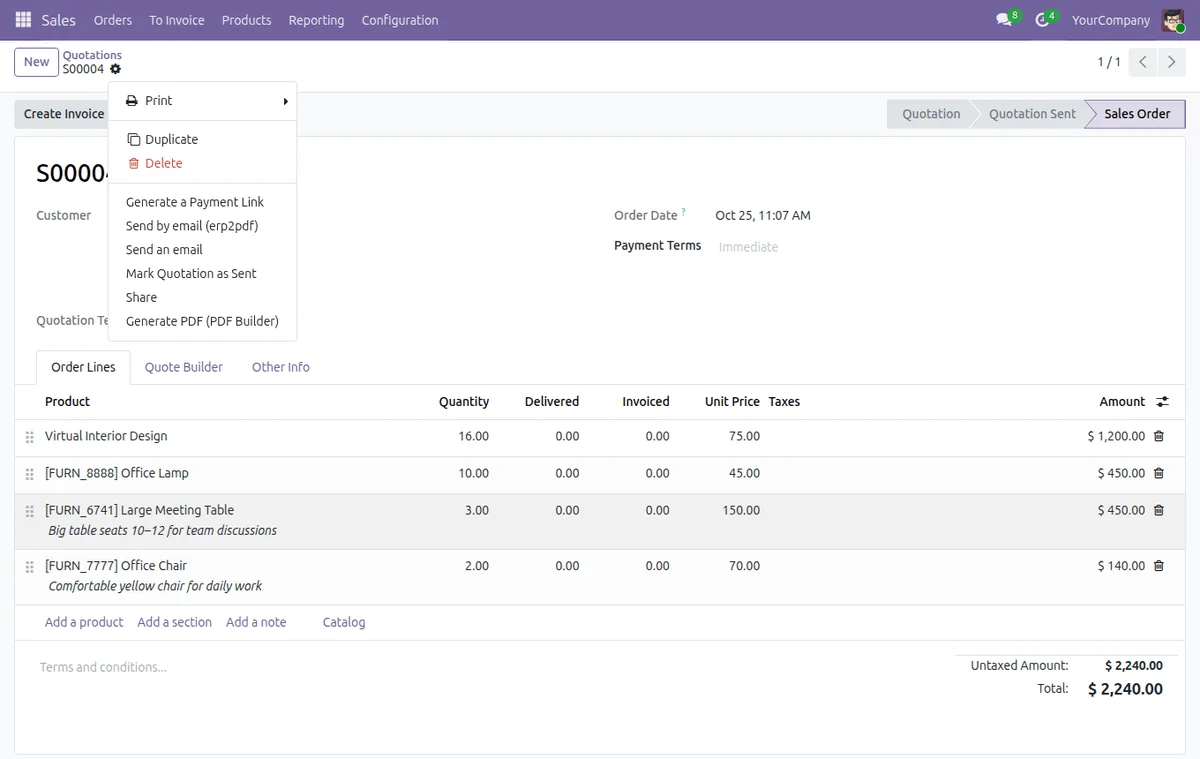
The PDF downloads and is attached to the record's chatter.
Step 9. Send emails designed in Studio (Pro plan)
On the Pro plan you can also design the email itself. In Studio open the Emails tab and start from the quotation or invoice email, or a blank one. Build it from blocks — a header with your company name or logo, text, a button, the line items, a summary of the totals — or switch to the Code view and edit the HTML. Drag fields from the list into the subject or any block; the preview shows the email filled with a record. Under Attach PDF choose the PDF template to attach. Translations work as for PDFs: Odoo sends the email in the customer's language.
In Odoo, open a quotation or an invoice and choose Send by email (erp2pdf) from the gear menu. Pick the email template, check the recipients, subject and body, and click Send. The email goes out through Odoo's own mail server, the PDF is attached in the customer's language, and the message is logged in the chatter.
Connect manually
If erp2pdf.com cannot reach your Odoo from the internet, Connect ends with erp2pdf.com could not reach this Odoo at its public address and nothing is connected. Use a token instead:
- On erp2pdf.com open Connect Odoo and choose or connect manually, or create an Odoo token under API tokens in your cabinet.
- Copy the API token and the HMAC secret. They are shown only once: we keep the token only as a hash and the secret encrypted. Treat the pair like a password.
- In Odoo open Settings → PDF Builder Connector and fill in the fields under Or connect manually, then click Save.
| Field | What to enter |
|---|---|
| SaaS URL | https://erp2pdf.com |
| This Odoo's Connector URL | Your Odoo's public address, the same as web.base.url. Leave it empty to use web.base.url. |
| API Token | The API token |
| HMAC Secret | The HMAC secret |
| Extra models for Studio | Usually empty. Sales orders, purchase orders, invoices, contacts, products and companies are covered, and so are the models you give a default template; list other models here only if your templates need them, e.g. stock.picking. |
Paste the values exactly, with no spaces or line breaks. The first call from Odoo locks your workspace to its address and fills in the connector URL on the token in your cabinet.
If something goes wrong
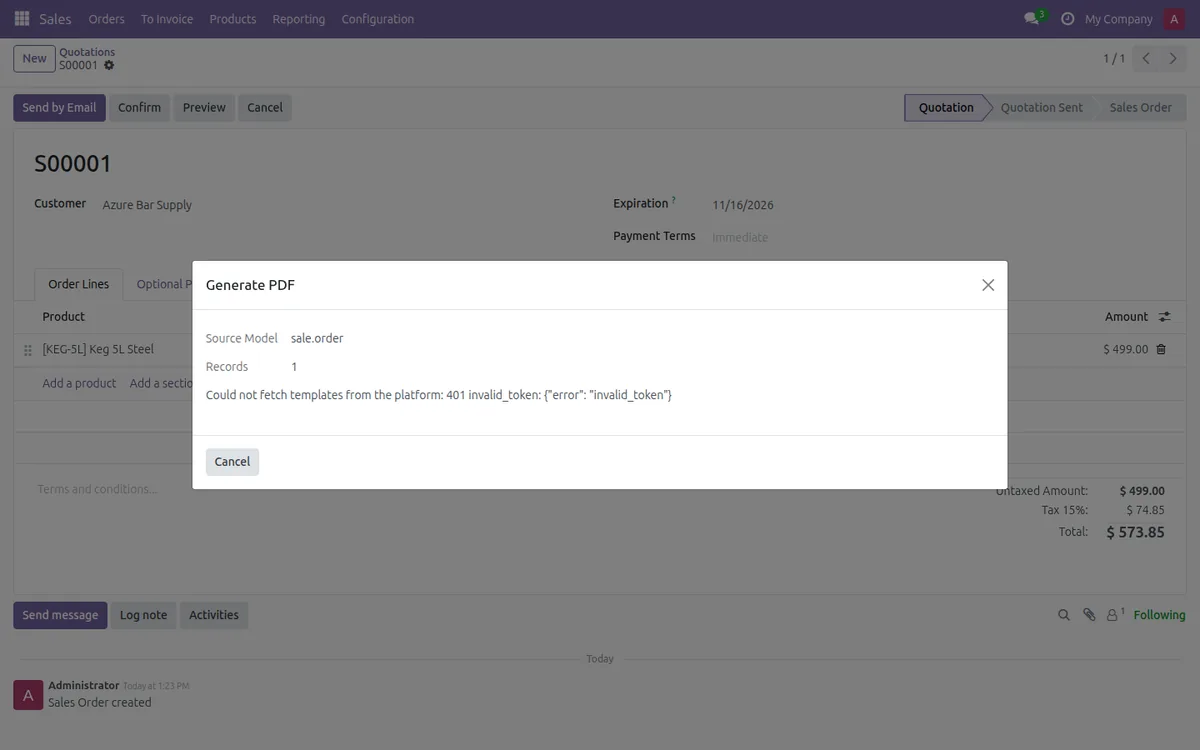
Errors appear on Odoo's Connect page, or in the Generate
PDF dialog as code: details.
| Error | What it means | What to do |
|---|---|---|
| erp2pdf.com could not reach this Odoo | Connect could not verify your Odoo at its public address | Check web.base.url (step 2) and that your Odoo answers on https from the internet, or connect manually |
| The code expired | The code was not confirmed within 30 minutes, or was used already | Click Try again in Odoo for a new code |
| The connection was declined | Someone clicked Decline on erp2pdf.com | Click Try again and allow it |
| This workspace is already connected to … | The workspace is locked to another Odoo address | Pick another workspace on the Connect page, or write to [email protected] to move it |
not_configured | SaaS URL, API Token or HMAC Secret is empty | Click Connect again, or fill in all three and save |
401 invalid_token | The API token is wrong, revoked or deleted | Click Connect again, or create a new token and paste both new values |
401 invalid_signature | The HMAC secret doesn't match the token, or was pasted with extra characters | Paste the secret again, exactly as shown |
401 stale_timestamp | Your Odoo server's clock is more than 5 minutes off | Sync the server clock (NTP) |
403 domain_mismatch | Your workspace is locked to a different Odoo address | Check web.base.url and the Connector URL. If you moved Odoo, write to [email protected] to unlock |
400 invalid_origin | The Odoo address isn't a valid https://host (plain http is refused) | Fix web.base.url or the Connector URL |
402 upgrade_required | The template uses a Pro feature: an email template, a custom font or a print profile | Upgrade to Pro in the cabinet, or remove the feature from the template |
402 insufficient_credits | Not enough credits left for this PDF | Top up credits or wait for the next billing cycle |
404 template_not_found | The template was deleted in Studio | Click Refresh templates, or reopen the dialog |
413 payload_too_large | Too many records or too much data in one PDF | Select fewer records (up to 200) |
transport | Odoo couldn't reach erp2pdf.com | Check the SaaS URL and that your Odoo server can make outgoing https requests |
| No templates in the list | No Studio template is bound to this model | In Studio, bind a template to the model you print from, then click Refresh templates |
Remove the connection
- In erp2pdf.com: open API tokens and click Revoke. Odoo loses access at once.
- In Odoo: clear the API Token and HMAC Secret in Settings → PDF Builder Connector, or uninstall the module.
What data is shared
- When Odoo prints, sends or generates a PDF, it sends erp2pdf.com only the fields the chosen template uses, for the records you print, read with your own Odoo permissions, plus the language, time zone and your Odoo's address. Emails are sent by your Odoo, not by erp2pdf.com.
- While you design, Studio reads your models and fields from your Odoo. It reads a record only when you allowed live previews (step 4 or the Odoo card in your cabinet), one at a time, and only from sales orders, purchase orders, invoices, contacts, products, companies, the extra models you listed and the models you gave a default template. Users, system, payment and HR records are never readable, and neither are passwords, tokens, keys or fields only administrators can see.
- Every request between the two is signed with your HMAC secret, expires after 5 minutes and can't be replayed; your Odoo rejects anything else.
- Everything travels over https. Generated PDFs are attached to the Odoo record; erp2pdf.com keeps the request and the PDF for 30 minutes so a retried click doesn't charge you twice.
No Odoo yet, or want to see the result first? The demo opens on a finished catalog page built from sample products.